 English
 简体中文
简体中文
 Bahasa Melayu
WINBOX Change App Icon Guide
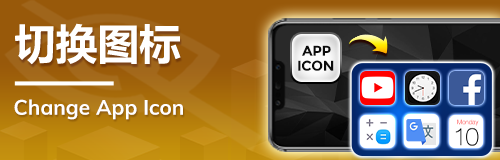
How to Change Your WINBOX App Icon

Step 1 – Open the WINBOX App
Launch the WINBOX application on your mobile device. The tutorial banner you provided visually shows the app interface and the "Change App Icon" feature available in the settings.
Step 2 – Go to "Me"
Tap on the "Me" button located in your bottom navigation bar. This brings you into your personal account settings, just like the interface displayed in your tutorial image.
Step 3 – Enter "Setting"
Inside the "Me" page, select the "Setting" menu to access system customization features.
Step 4 – Select "App icon"
Locate the "App icon" option as shown clearly in the instructional snapshot. This is where you manage your alternative icon themes.
Step 5 – Choose Your Preferred Icon
You will see multiple icon styles available for selection (e.g., logo, simplified icon, alternative theme icons). The image you provided shows icons like Facebook-style, Google-style, and more.
Step 6 – Click "Confirm"
After choosing your preferred icon, tap "Confirm" to apply the changes.
Step 7 – App Icon Successfully Updated
Your home screen will now display the new WINBOX app icon, as demonstrated in the final screenshot of your image guide.
Why Change Your WINBOX App Icon?
Personalize Your Experience
The WINBOX app allows users to select from multiple icon themes, letting you customize the look of your app to match your style.
Easily Identify Your App
If you have many apps installed, choosing a distinctive icon helps you quickly locate the WINBOX app on your home screen.
Clean and Modern Visual Options
WINBOX provides a range of alternate icons—including minimal designs, alternative color themes, and branded-style icons—for a clean and upgraded appearance.
Available WINBOX App Icons
Standard Logo Icon
The default icon representing the WINBOX brand.
Alternative Style Icons
Includes business-style icons, color-themed icons, clean minimal icons, and popular-app-style icons (as shown in your step-by-step images).
Seasonal or Special Event Icons
During promotions or updates, new temporary icons may be released for users to switch to.
Common Questions
Icon Didn’t Update?
Ensure your device allows icon customization. Some phones require clearing cache or refreshing the launcher.
Can I Change Back Anytime?
Yes, simply repeat the steps and select the default icon again.
Why Are There Multiple Icon Styles?
WINBOX provides flexibility so users can personalize their visual experience.
Customize Your WINBOX App Today
Follow the simple steps to choose your favorite icon and enhance your WINBOX mobile experience with a fresh, personalized look.